Using Assettlor
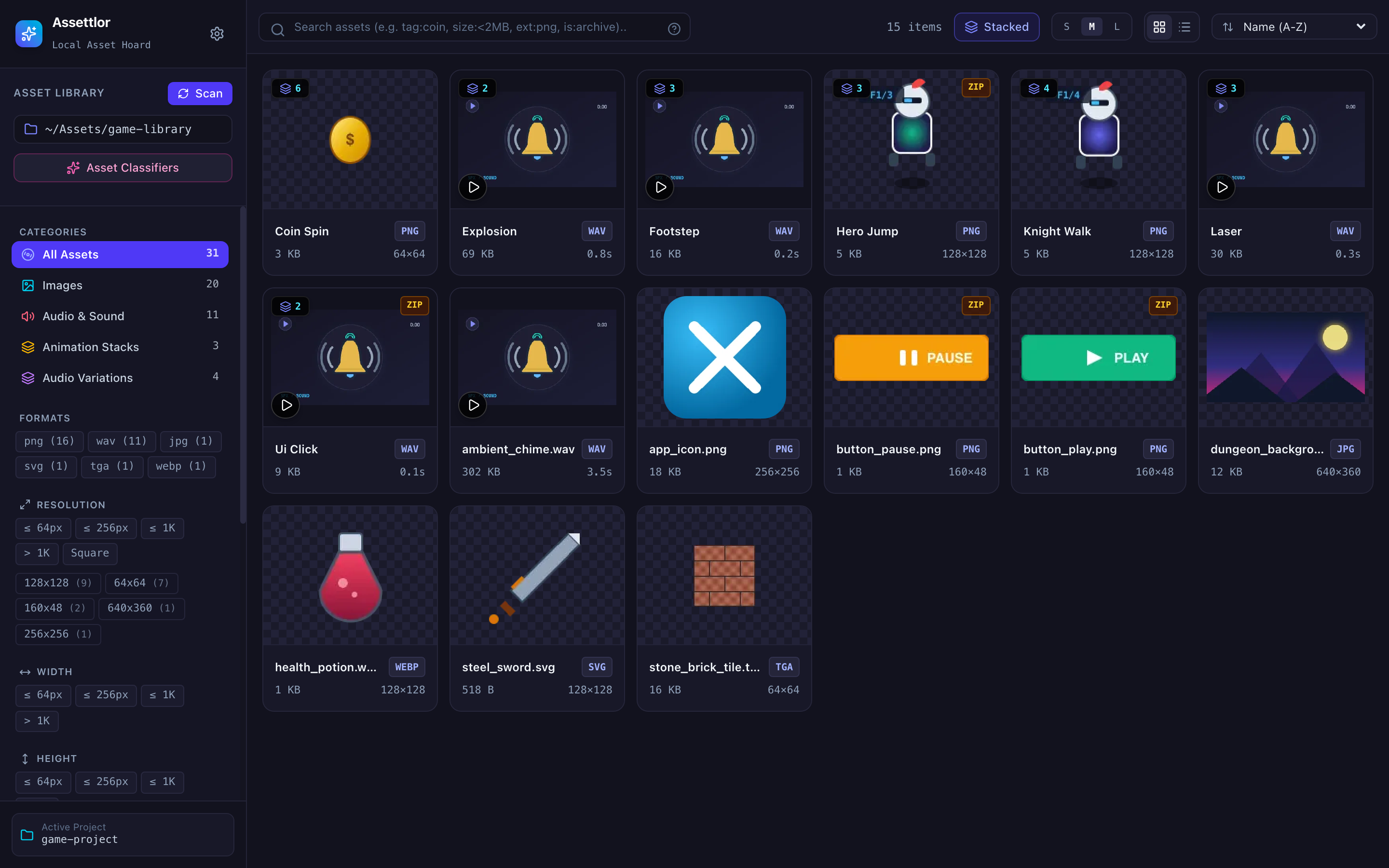
Scan and browse
Add one or more library directories in Settings. A scan reads supported disk files and ZIP entries, extracts metadata, creates thumbnails, and updates the SQLite catalog. Later scans check content fingerprints and avoid decoding unchanged media. Offline roots and failed traversal scopes retain their previously indexed assets until a successful scan can reconcile them.
A scan commits new assets to the catalog in batches of 500 as it goes. When a batch lands, a banner above the gallery offers Show to load the new assets. Stacks and automatic classifiers update when the scan finishes. If a scan is cancelled or stops, the batches it committed stay indexed and the next scan continues from there.
Each library in Settings has its own Scan and Reindex buttons. Scan looks for new and changed files. Reindex deletes that library's index and rebuilds it from scratch. Before it starts, you choose whether to keep user tags. The current index stays available until the rebuild finishes. Removing a saved library asks for confirmation, because saving also deletes its index.
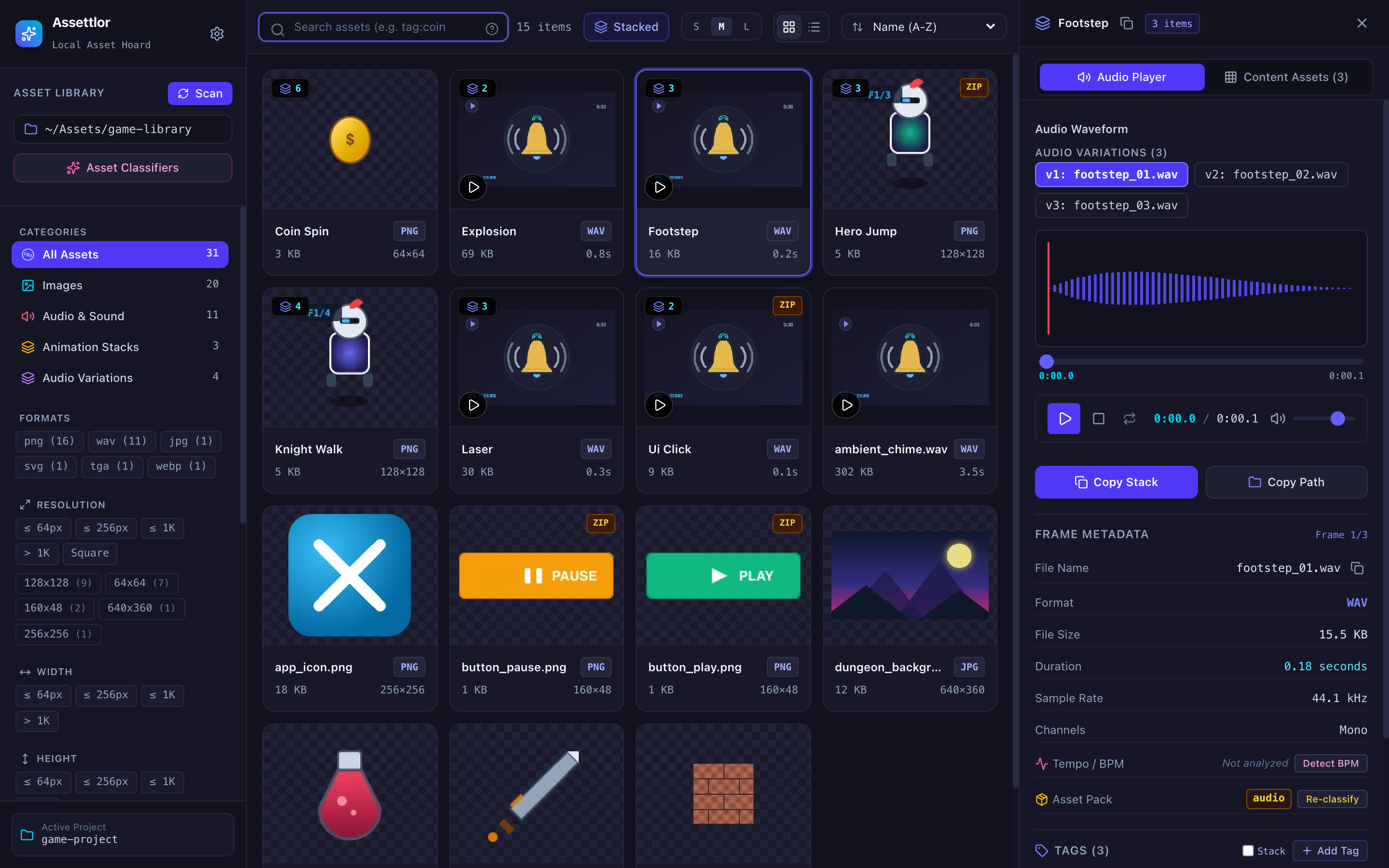
Use category, tag, and format filters in the sidebar and search in the top bar. The gallery offers stacked and flat views, sorting, and Load more paging. To browse numbered pages of 100 results instead, set Paging to Numbered pages under Catalog Results in Settings. Open an asset to inspect its dimensions, audio or model metadata, tags, and source path.
Search
| Example | Meaning |
|---|---|
tag:"pixel art" |
Match an exact tag |
pack:"Retro Pack" |
Match an exact pack name |
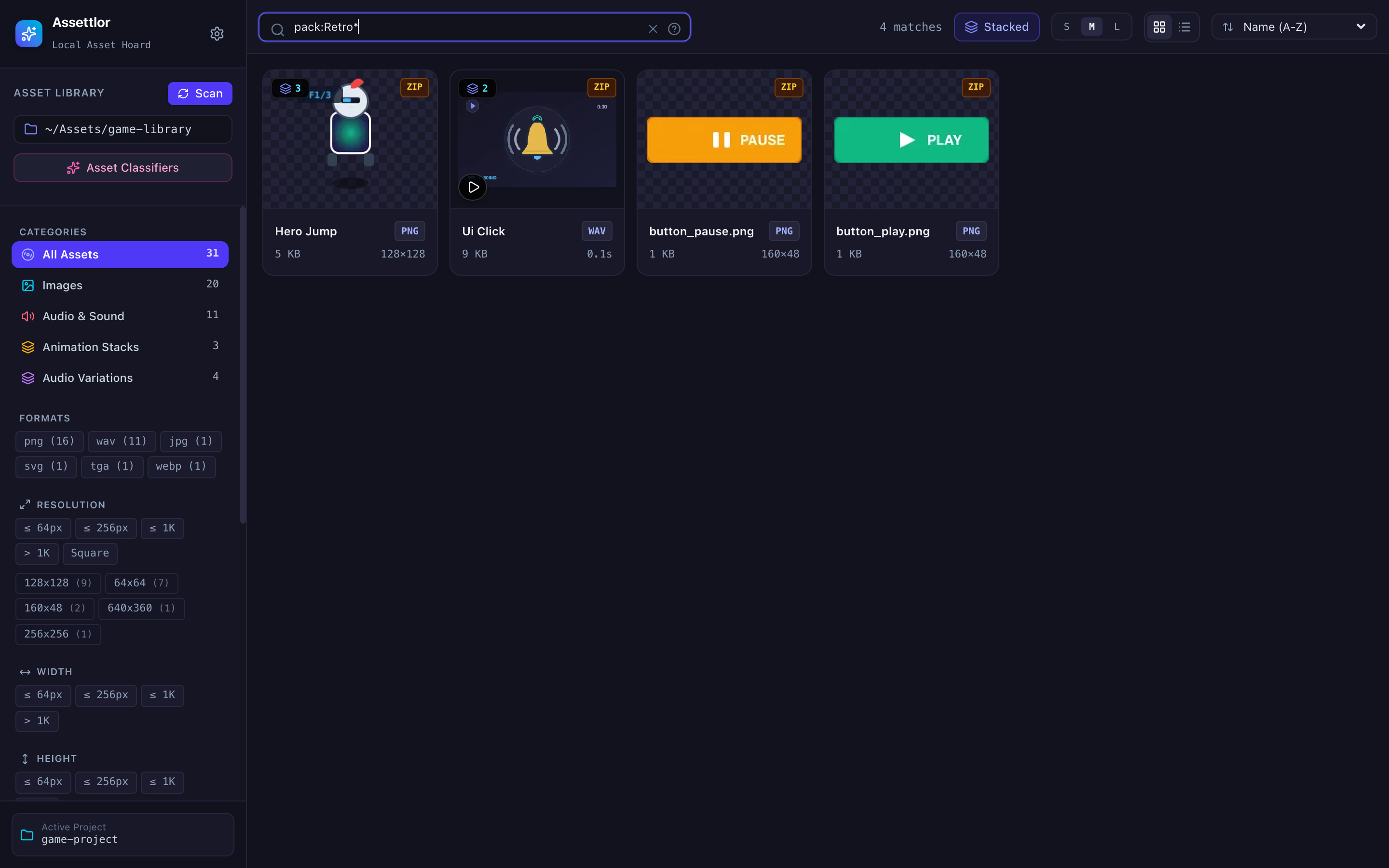
pack:retro* |
Match pack names with a wildcard |
folder:coins |
Match assets with a coins subfolder in their path |
folder:none |
Match assets directly in a library root |
lib:kenney |
Match assets from libraries named kenney (or library:kenney) |
tag:target AND bpm:fast |
Combine tag and tempo filters |
is:model |
Match 3D models (or is:3d, cat:model) |
Quote names containing spaces, punctuation, or search operators. Inside quoted
values, escape " and \ with a backslash. Unquoted * acts as a wildcard
only for pack:, folder:, and lib: filters; % and _ are literal characters.
lib: matches library names, ignoring case. A library can have several names
(aliases), and several libraries can share one name to filter as one library.
A library without names goes by its folder name, so lib:assets matches the
library at ./assets. Name libraries under Libraries in Settings or in
the configuration file. A name that matches no library
returns no results. The sidebar lists library names when there is more than
one.
Named BPM ranges are slow (below 80), moderate (80 to below 120), fast
(120 to below 150), and high or very-fast (150 or above).
In stacked view, separate filters can match different members of one stack.
For example, a stack can match tag:target AND bpm:fast when one member has
the tag and another has the tempo. In flat view, all filters must match the
same asset. Empty known filters such as tag: impose no restriction while
you type; unsupported clauses are searched as literal text.
Preview stacks and media
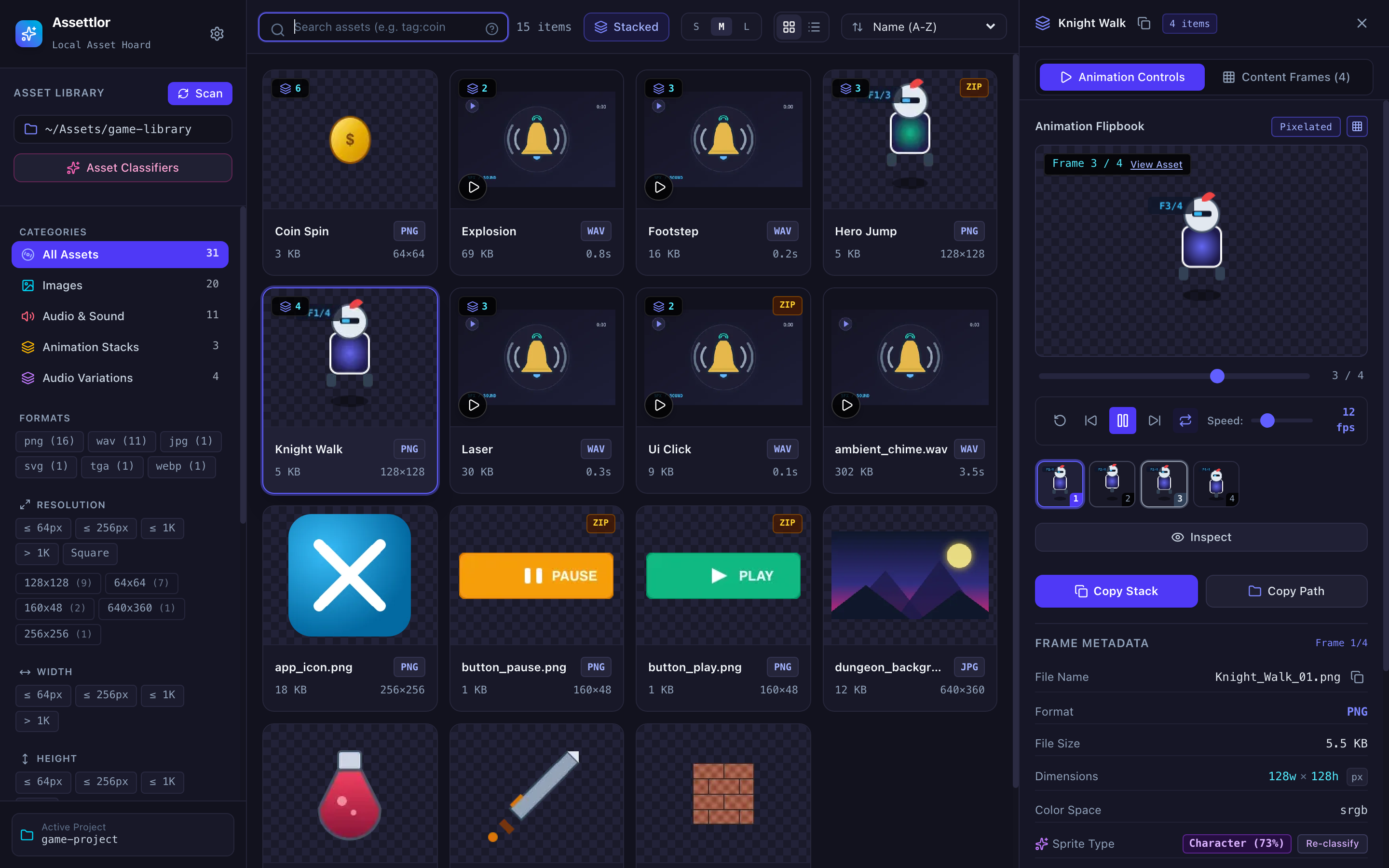
Sequential image names such as Logo_Spin_01.png through Logo_Spin_04.png,
or underscore-lettered names such as Rock_A.png and Rock_B.png, can form an
animation stack. Numbered or lettered audio variants such as
click_01.wav and click_02.wav, or Chime_A.wav and Chime_B.wav, can form
an audio variation stack.
The inspector includes a flipbook player with playback, a 1–60 FPS control, and a frame scrubber. Audio previews use a waveform player and variant selection. Image previews support zoom, pointer dragging, arrow-key panning, and resetting the pan position. TGA images use converted thumbnails for display.
3D models (.glb) open in an interactive viewer: drag to orbit, scroll to
zoom, and right-drag to pan. The toolbar resets the view, toggles auto-rotation
and wireframe, and plays animation clips. The metadata panel lists triangle,
vertex, mesh, material, texture, and animation counts, the model's size, and
the exporting tool.
Classify assets
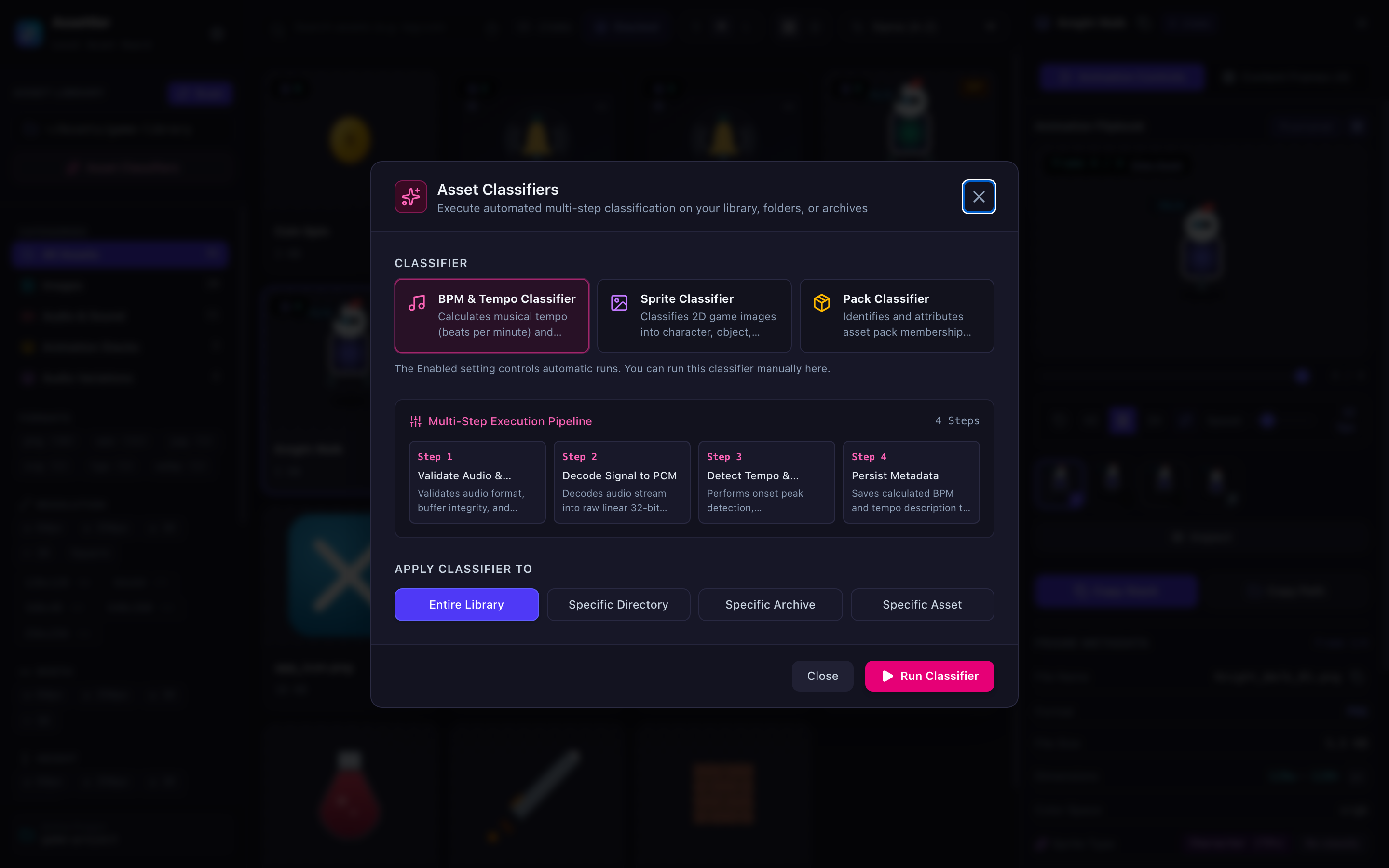
The classifier interface exposes BPM analysis for audio, sprite classification
for images, pack inference from archives or directories, and folder
classification. Each classifier has its own settings and can run against
selected targets. Results are stored as asset metadata and queried with bpm:,
sprite:, pack:, and folder: filters; classifiers never add tags.
The Folder Classifier records each subfolder between the library root and the
asset, outermost first. For an archive entry such as
packs/Retro.zip#/tiles/grass.png, the folders are packs and tiles; the
archive itself is not a folder. The sidebar lists the recorded folders with
their asset counts. See
Configuration for defaults and the API reference
for programmatic runs.
When an archive's file name is a hash (for example
2f0f082ccb41c9900f43d2b54a16f1c84c5352e8.zip), pack inference looks inside
it and uses its single root directory as the pack name, unless that directory
name is also a hash.
Copy to a project
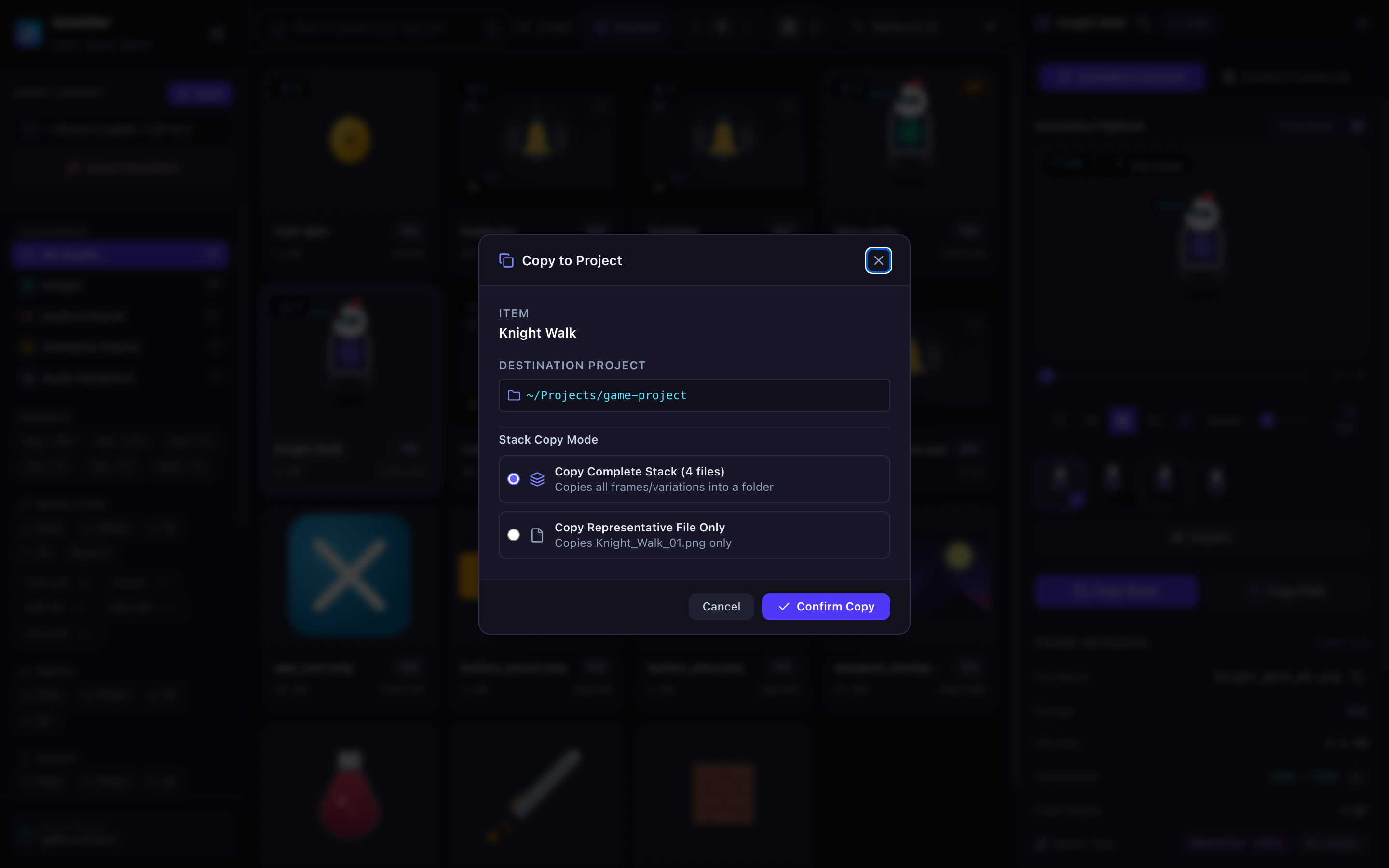
Configure a project destination in Settings and choose Copy to Project. You can copy a single file, a stack's representative file, or all members of a stack. A full stack goes into a dedicated folder, using its stack name when no subfolder is supplied. ZIP entries are read from the archive and written as regular files in the destination.
Copies check sources and destinations before writing. Existing files, duplicate member names, and unsafe destination symlinks cause a conflict. If a copy fails during execution, Assettlor attempts to remove the files published by that operation and reports any remaining paths. The success message identifies the directory containing the copied files.